
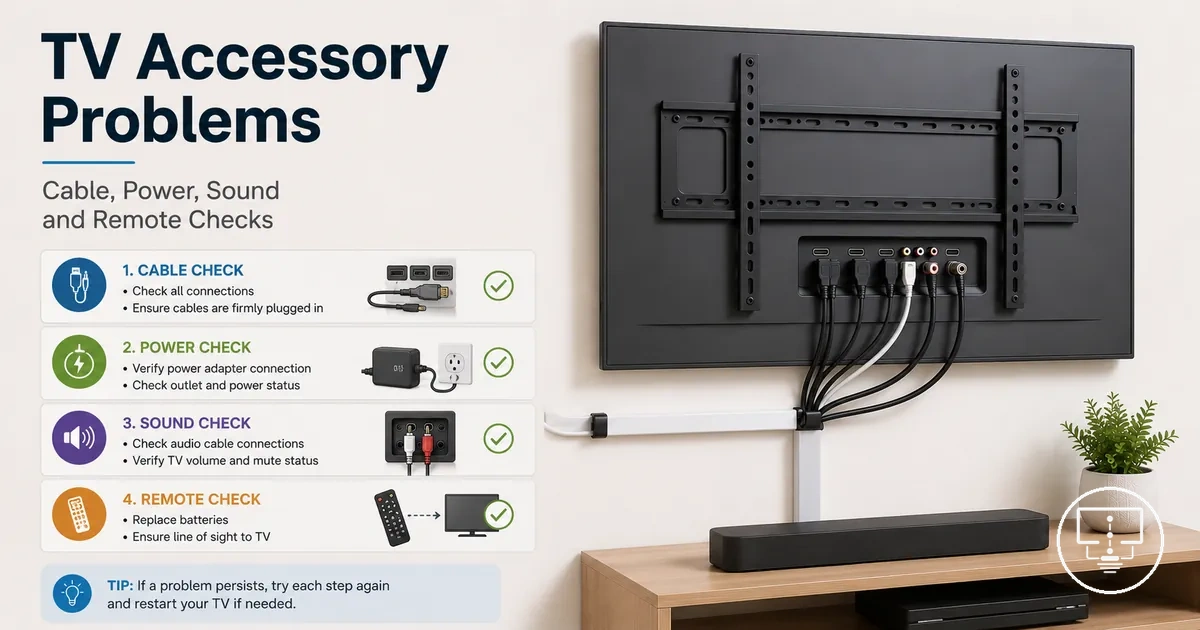
TV Setup Accessory Troubleshooting
TV setup accessory troubleshooting helps isolate whether a setup problem is coming from an accessory, a TV setting, a connected device, a compatibility limit, or a part that may need replacement. The diagnostic focus stays on cables, adapters, power items, remotes, IR extenders, and audio accessories without assuming that one symptom proves one cause.
A no-signal screen, missing sound, no remote response, unstable power, or intermittent control issue may start with the accessory condition, but the same symptom can also come from the selected input, port behavior, device output, pairing state, or a changed setting. A cable that is loose, a remote with battery or pairing problems, or an audio accessory using the wrong output path can look similar until each variable is separated.
The safest path is to check visible condition, connection seating, power state, input selection, and repeatability before treating the accessory as faulty. If a problem follows one accessory across ports or devices, the accessory may be the stronger suspect; if the problem changes with the TV port, source device, or setting, the decision may depend on compatibility or configuration rather than replacement.
Common Symptoms of TV Setup Accessory Problems
TV setup accessory problems usually appear through signal, sound, control, power, or compatibility symptoms. These symptoms help group the likely accessory area, but they do not prove the accessory is faulty because the TV port, selected setting, connected device, or configuration can create a similar visible condition.
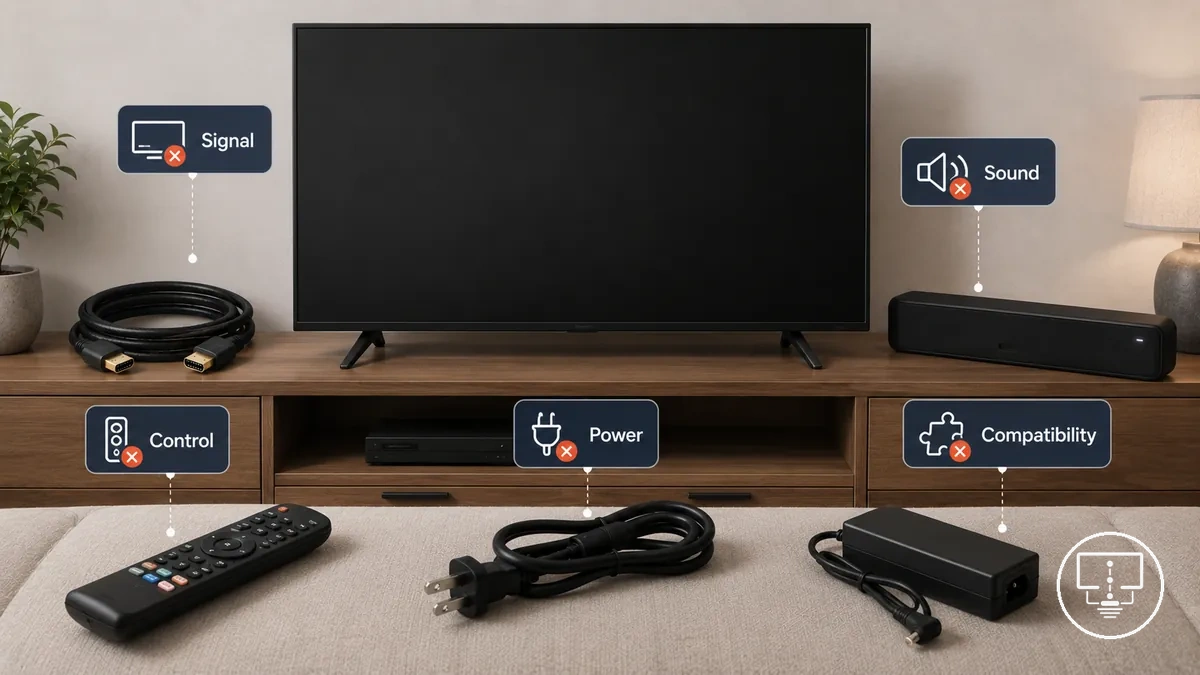
TV setup accessories include connection, control, power, audio, mounting, and cable-management items that support the TV setup rather than replace the TV itself. The table separates each symptom by likely accessory group, visible condition, and possible diagnostic meaning so the first decision is based on the observed pattern.
| Symptom type | Likely accessory group | Visible condition | Possible diagnostic meaning |
|---|---|---|---|
| Signal | Cable, adapter, or port-related accessory | No picture, blank screen, dropout, or unstable input | The issue may involve cable seating, adapter fit, source output, TV input selection, or port behavior. |
| Sound | Audio cable, soundbar accessory, adapter, or pairing accessory | No sound, delayed sound, distorted sound, or sound from the wrong output | The issue may involve the audio path, output setting, cable condition, paired device, or source-specific behavior. |
| Control | Remote, battery, IR extender, sensor, or pairing accessory | No response, inconsistent response, or blocked control signal | The issue may involve battery condition, remote pairing, infrared visibility, sensor blockage, or TV response state. |
| Power | Power cord, outlet accessory, plug, or power-control item | Intermittent power, flicker, loose fit, heat, or visible damage | The issue may involve the power accessory condition, outlet contact, plug movement, or a setup that should stop normal troubleshooting if damage is visible. |
| Compatibility | Adapter, cable, mount-related fit item, remote, or audio accessory | Accessory connects but does not behave as expected | The issue may depend on model, port, signal type, device support, pairing method, or setup configuration. |
Symptom recognition starts the diagnosis rather than ending it. For example, signal loss can point to a loose cable, the wrong TV input, or a connected device that is not sending the expected output, so the next step should separate the accessory condition from the TV setting and device behavior.
No signal, no sound, no response, and intermittent power symptoms
When no signal, no sound, no response, or intermittent power symptoms occur, the symptom often points toward a particular accessory path, but it may also involve a TV setting, port, connected device, or compatibility condition. A stable failure and an intermittent dropout or interruption can suggest different diagnostic directions, so symptom patterns are usually more useful than a single occurrence.
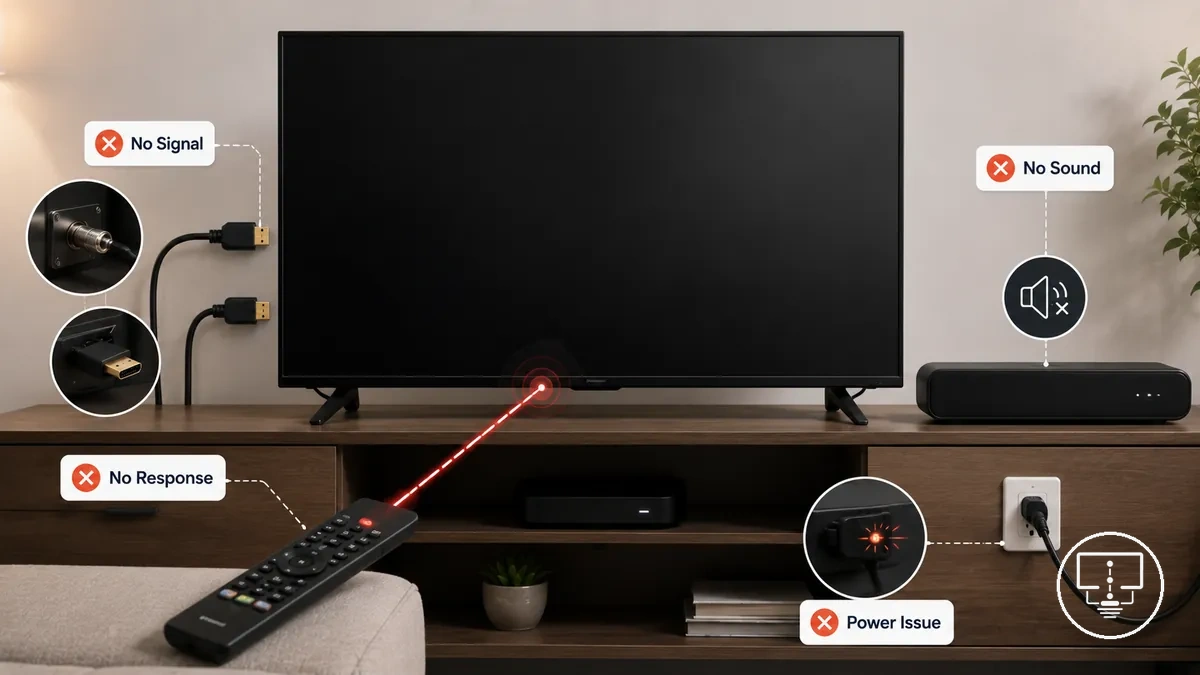
Each symptom group can help narrow the accessory area before deeper diagnosis:
- No signal: May relate to an HDMI cable, antenna connection, adapter, input selection, source output, or port condition.
- No sound: May involve an audio accessory, cable path, output setting, pairing state, or connected device configuration.
- No response: May point toward a remote, battery condition, IR extender, sensor visibility issue, or control-related setup problem.
- Dropout: An intermittent interruption may indicate an unstable connection, movement-sensitive cable condition, adapter issue, or changing device behavior.
- Intermittent power: May involve a power accessory, plug fit, outlet contact, or another power-path condition that appears only under certain circumstances.
Accessory fault versus TV, device, or setting fault
Fault identification depends on comparing condition, setting, device behavior, and repeatability rather than assuming one symptom has one source. The same setup problem may appear identical on screen, yet the diagnostic decision can change when a different port, input, device, or accessory is introduced.
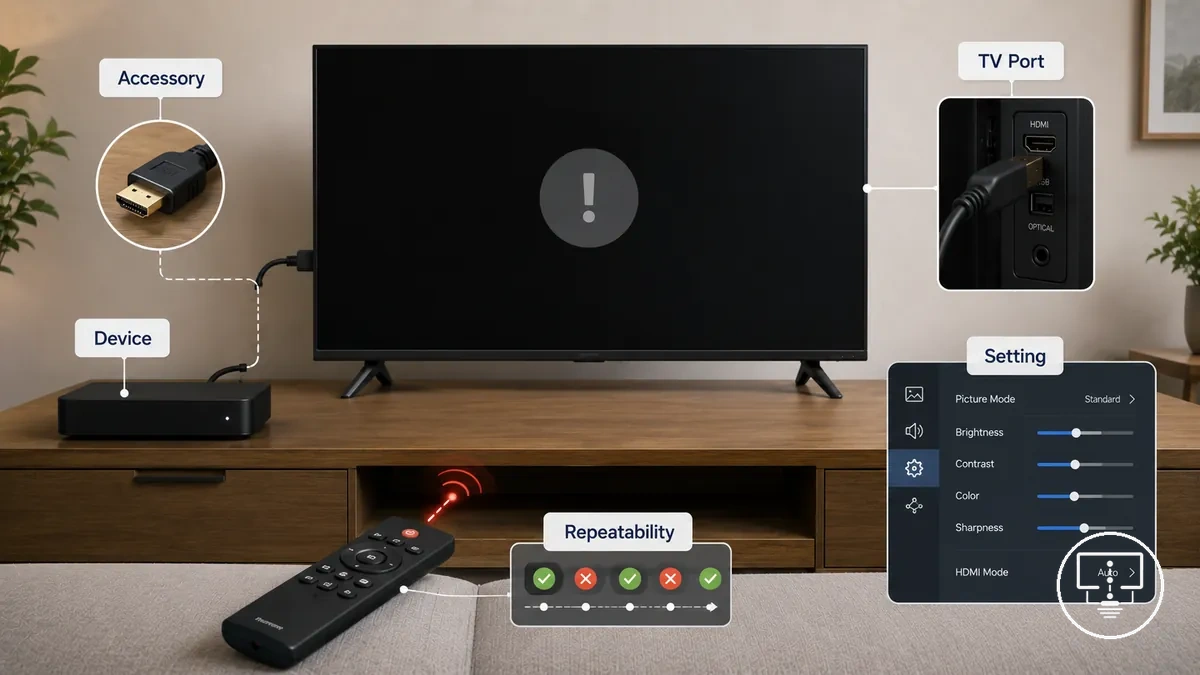
The criteria below help separate likely fault sources without treating any single test as final proof:
| Observed condition | More likely source | Reasoning for the decision |
|---|---|---|
| The symptom follows the same accessory across different ports or devices | Accessory fault | Repeatability remains linked to the accessory condition rather than the TV or connected device. |
| The symptom changes when a different TV port is used | TV port or TV setting | Port behavior or input selection may influence the outcome. |
| The symptom appears with one source device but not another | Connected device | Device output or configuration may differ between sources. |
| The symptom disappears after selecting the correct input or pairing state | Setting-related fault | The condition may result from configuration rather than accessory failure. |
| The symptom appears only with a specific combination of components | Compatibility-related risk | The decision may depend on how the components interact rather than on a single faulty part. |
A repeated fault can make an accessory issue more likely when the same condition follows that accessory across otherwise unchanged setups, but identical symptoms can still have different meanings across systems. If the problem appears only in certain combinations, deeper investigation of compatibility problems may be more useful than assuming the accessory itself is the sole cause.
Basic Isolation Checks Before Replacing Accessories
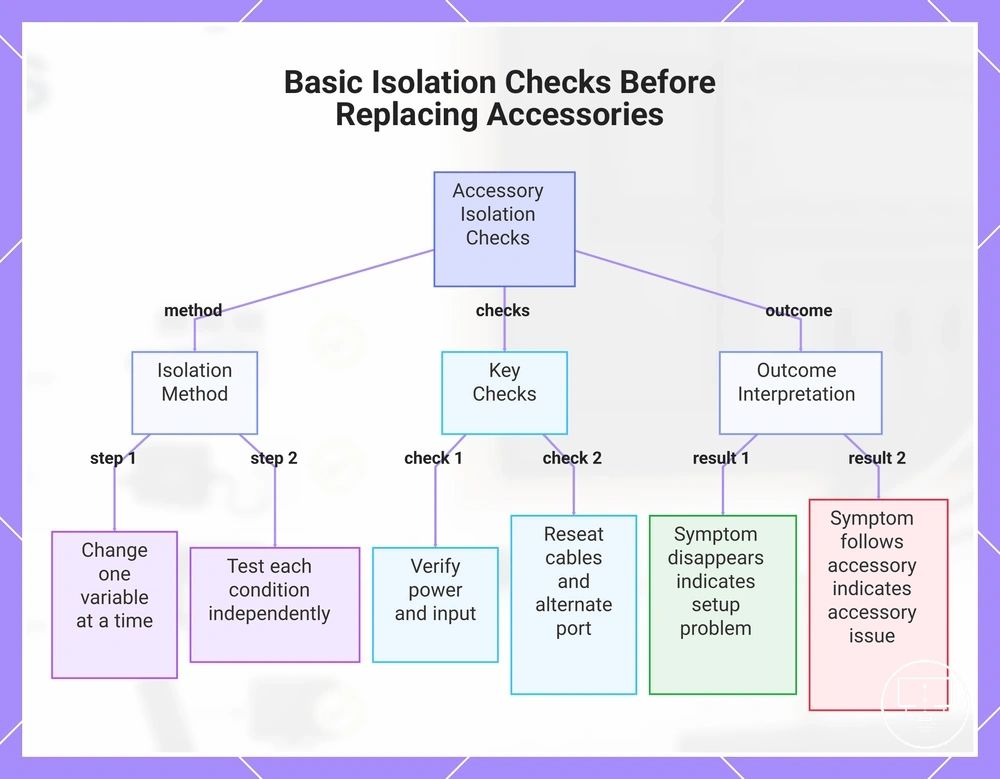
An isolation check helps reduce false replacement decisions by separating an accessory issue from a TV setting, device behavior, port condition, or power source problem. The method focuses on changing one variable at a time so the outcome remains easier to interpret. A replacement decision is usually stronger when the same symptom shows repeatability after simple configuration and connection variables have been isolated.
The isolation process works best when each condition is tested independently rather than changing multiple factors at once:
- Confirm the TV and connected device power state before evaluating the accessory condition.
- Verify that the selected TV input matches the connected source.
- Reseat each cable connection and confirm that the connection remains secure.
- Move the accessory to an alternate port and observe whether the symptom changes.
- Test an alternate accessory of the same type when one is available.
- Check the outlet and power path if the symptom involves power interruption or inconsistent operation.
- Change one variable at a time and compare repeatability across each test condition.
If a symptom disappears after an input selection change, connection reseating, or outlet correction, the setup problem may be related to configuration or connection state rather than accessory failure. If the same condition repeatedly follows the same accessory while other variables remain stable, the accessory issue may become a stronger replacement candidate, although the final decision can still depend on the wider setup and compatibility context.
This chart shows the isolation check process for accessories, including the method, key checks, and how to interpret outcomes to avoid false replacement decisions.
Power cycle, reconnect, and input-source checks
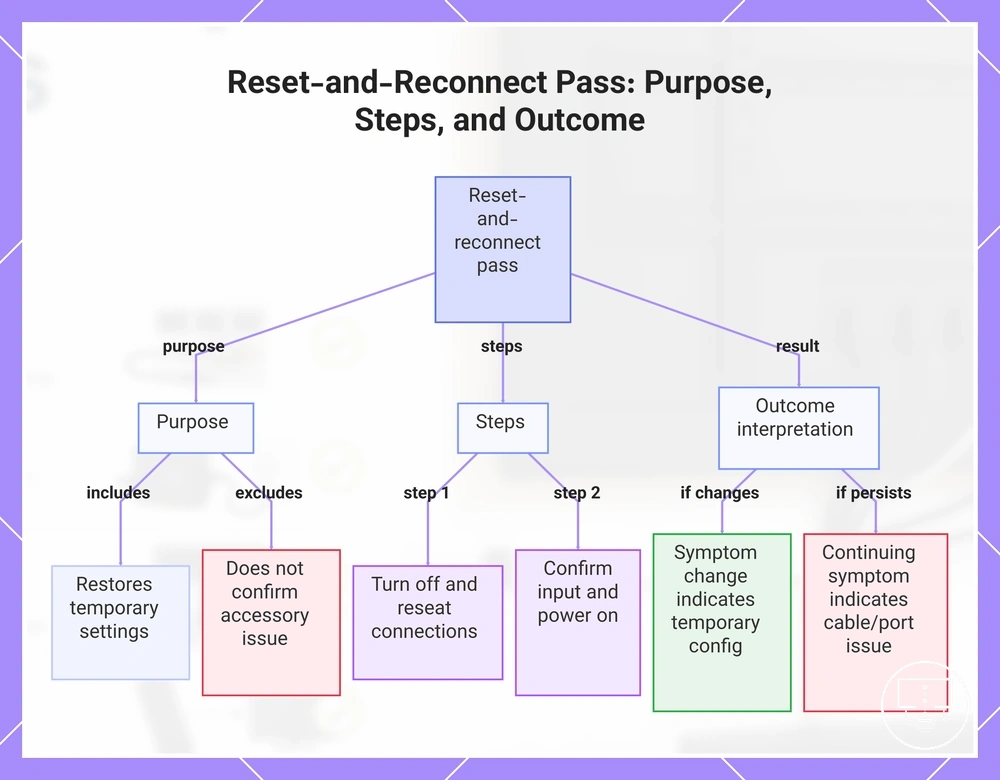
When a symptom appears, troubleshooting should start with a power cycle, connection refresh, and input-source check before deeper accessory testing. This pass can help restore a temporary setting, signal negotiation state, cable connection, or remote pairing condition, but it does not confirm that an accessory issue has been resolved.
Use the reset-and-reconnect pass to isolate common setup-state conditions:
- Turn the TV and connected device off before reconnecting a cable or accessory.
- Reseat plugs and cables to confirm that each connection remains fully seated.
- Confirm that the selected TV input matches the connected source device.
- Turn the connected device back on and allow the signal path to renegotiate.
- Test the symptom again before changing another setting, cable, remote, or port.
If the symptom changes after reconnection or input selection, the setup problem may be related to a temporary configuration state rather than a persistent accessory fault. In some cases, this pass may also refresh an HDMI handshake or pairing state, but a continuing symptom can still indicate a cable condition, device output issue, port-related condition, or compatibility risk.
This chart shows the purpose, steps, and outcome interpretation of the reset-and-reconnect pass used to isolate temporary setup-state conditions before deeper accessory testing.
Testing with another port, cable, remote, or outlet
Substitution testing helps show whether the accessory or another setup element is more likely responsible by changing one variable at a time. An isolation check that uses a different port, cable, remote, battery set, outlet, or known-working accessory can make the symptom pattern easier to compare without treating the result as final proof.
Use the mini-checklist below and change only one variable during each comparison:
- Try another TV port and observe whether the symptom changes with the port while the rest of the setup remains the same.
- Test another HDMI or audio cable while keeping the same TV input, device, and setting.
- Use another remote or battery set when the symptom involves no response or inconsistent control.
- Move the power connection to another outlet if the symptom involves interruption or unstable power.
- Compare with a known-working accessory when available and leave other conditions unchanged.
If both the original setup and the alternate setup fail in the same way, the setup problem may involve a shared device, TV setting, port group, or compatibility condition rather than the accessory alone. If the symptom follows only one accessory while other conditions remain stable, that accessory issue may become a stronger diagnostic candidate.
Cable and Adapter Connection Problems
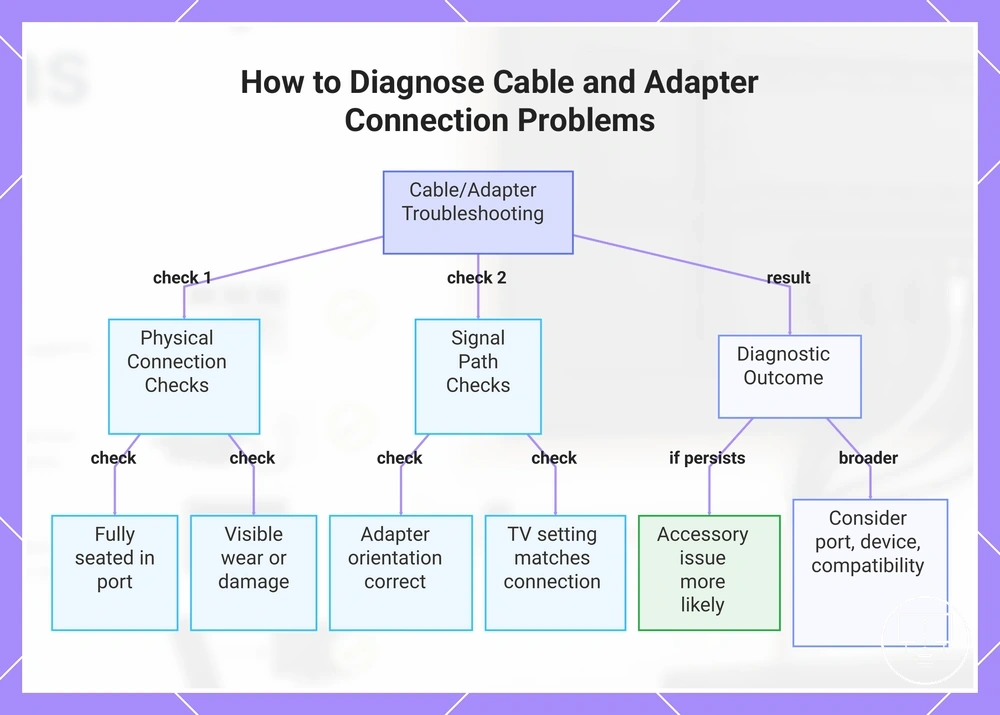
When a TV symptom appears only on a specific connection path, a cable or adapter condition may be contributing to the setup problem. Cable and adapter troubleshooting focuses on signal path continuity, port fit, format support, directionality, and physical condition before fault attribution moves to the TV, device, remote, or setting.
Component condition can change diagnosis even when symptoms look similar. A loose HDMI cable may create intermittent signal loss, a damaged optical audio cable may interrupt sound delivery, a coaxial or antenna cable may fail to maintain a stable connection, and a wrong adapter may fit physically while still not supporting the intended signal path. An unsupported signal format can also resemble an accessory issue even when the cable remains physically connected.
Use the checklist below to separate connection condition from other possible causes:
- Check whether the HDMI, antenna, coaxial, or optical cable is fully seated in the intended TV port.
- Inspect the cable and connector for visible wear, damage, looseness, or movement that changes the symptom.
- Confirm that the adapter orientation matches the intended signal direction when directionality applies.
- Compare the selected TV setting and input source with the physical connection being used.
- Consider whether the adapter, cable, source device, and TV port support the same signal format before attributing the symptom to cable failure.
If the symptom remains tied to the same connection path after these checks, the accessory issue may become more likely. For broader diagnosis involving related connection accessory issues, the decision should still account for port behavior, device output, and compatibility risk rather than assuming the cable alone is responsible.
This chart shows the main checks and diagnostic outcomes for cable and adapter connection issues when a TV symptom appears on a specific connection path.
HDMI no signal and signal dropout checks
When an HDMI no signal symptom appears, the cause may involve cable condition, port selection, device output, or signal negotiation rather than a confirmed cable fault. A stable no signal condition often points toward a persistent connection, setting, or compatibility issue, while a dropout or interruption may be associated with movement, connection stability, or changing signal conditions. No sound or no response symptoms can also appear alongside HDMI problems when the signal path is incomplete.
Use the checklist below to isolate the HDMI connection path:
- Confirm that the HDMI cable is fully seated at both the TV port and the connected device.
- Try another HDMI port to determine whether the symptom changes with the port.
- Verify that the connected-device output matches the selected TV input and setting.
- Consider whether HDMI standard support may differ between the cable, device, and TV when compatibility risk is suspected.
- Observe whether cable length, cable routing, or cable movement coincides with a dropout or intermittent interruption.
- Compare a stable no signal condition with a movement-related dropout, since the two symptoms can point toward different diagnostic decisions.
If the symptom remains unchanged across ports and connection positions, the setup problem may involve device output, TV behavior, or signal negotiation rather than the HDMI cable alone. If the symptom changes when the cable is moved or reseated, the cable condition or connection stability may warrant closer inspection.
Coaxial, antenna, optical, and adapter fit problems
When no signal, no sound, no response, dropout, or interruption symptoms appear on non-HDMI connections, both physical fit and signal compatibility can influence the diagnosis. A cable or adapter may be connected correctly from a physical perspective, yet the setup problem can still involve a TV setting, source-device output, port mismatch, or unsupported signal path.
Use the points below to isolate local connection conditions before treating the accessory as the confirmed fault:
- Confirm that the coaxial connector is fully tightened and remains stable without movement.
- Observe whether antenna positioning changes the symptom, since signal reception may vary with placement and orientation.
- Verify that the optical cable is inserted in the correct orientation and seated completely at both connection points.
- Check whether the adapter matches the intended signal path and connection direction when adapter compatibility is in question.
- Inspect connectors for visible damage, looseness, bending, or wear that may affect connection stability.
- Compare the connected port with the selected TV input and source-device output to identify a possible port mismatch.
- Consider the edge case where a cable remains physically connected but still produces no signal or no sound because the signal type or port setting is not supported by the connected path.
If the symptom changes after correcting fit, orientation, or port selection, the condition may relate to connection state rather than a failed accessory. If the symptom remains tied to the same cable, adapter, or connector under stable conditions, the accessory issue may warrant closer inspection alongside compatibility risk and device-output behavior.
Soundbar and Audio Accessory Connection Problems
Soundbar and audio accessory connection problems may come from the audio connection path, TV audio output setting, source-device behavior, pairing state, cable condition, or compatibility limits rather than from hardware failure alone. The same symptom can mean different things depending on whether the setup uses HDMI ARC, eARC, optical audio, Bluetooth, or an audio adapter.
Audio troubleshooting should first separate where the sound path changes: at the TV output setting, at the accessory connection, at the source device, or at the pairing stage. For example, no sound may point toward an inactive output path, delayed sound may involve processing or wireless behavior, wrong output may follow a TV setting, and audio that works only on some sources may depend on source-specific output or format support.
The table below maps common audio symptoms to the connection area that may need closer inspection:
| Audio symptom | Likely area to inspect | Diagnostic meaning |
|---|---|---|
| No sound | TV audio output setting, HDMI ARC or eARC path, optical cable, Bluetooth pairing, or adapter connection | The audio path may not be selected, paired, seated, or supported by the current setup. |
| Delayed sound | Bluetooth connection, audio processing, source output, or soundbar setting | The delay may depend on the connection type, device behavior, or processing state rather than a confirmed accessory fault. |
| Sound from the wrong output | TV speaker setting, external speaker selection, ARC or optical output path | The TV may still be sending sound to a different output route. |
| Audio works only on some sources | Source-device output, audio format support, HDMI ARC or eARC behavior, adapter support | The issue may relate to how one source sends audio rather than to every cable or accessory in the setup. |
If the symptom changes after selecting the correct TV audio output, reseating the cable, or pairing the device again, the setup problem may be tied to configuration or connection state. If the same symptom remains tied to the same soundbar, adapter, or audio path under stable conditions, deeper review of sound accessory issues may help separate accessory condition from source behavior and compatibility risk.
HDMI ARC, eARC, optical, and Bluetooth audio checks
When an audio symptom occurs, the first troubleshooting step is to verify the requirement that matches the active audio path because HDMI ARC, eARC, optical, and Bluetooth connections rely on different settings, pairing states, and compatibility conditions. A setup problem may come from port selection, CEC-related behavior, audio format support, adapter limits, or source-specific output rather than from the accessory alone.
Use the comparison checklist below to isolate the audio path before changing multiple settings at once:
- HDMI ARC or eARC: Confirm that the connection uses the intended ARC or eARC TV port and review any relevant CEC-related setting that may affect audio control or device detection.
- Optical audio: Verify that the optical cable is fully seated at both ends and that the selected TV audio output matches the optical connection path.
- Bluetooth: Confirm that the audio accessory remains paired and connected, especially if the symptom appears after power cycling or switching devices.
- Audio format support: Consider whether the source device, TV setting, and audio accessory support the same audio format when sound is missing on only certain content or sources.
- Audio adapters: Check whether the adapter supports the intended signal path, since physical connection alone may not indicate compatibility.
- Source-specific behavior: If one source produces sound while another does not, the decision may depend on source output configuration, audio format handling, or compatibility limits rather than on the cable or accessory condition.
If one audio path works consistently while another does not, the symptom may help narrow the issue to a specific setting, source output, adapter limit, or compatibility risk. A single setting change can help in some cases, but no single adjustment should be treated as a universal fix for every soundbar or audio accessory problem.
Power, Remote, and IR Control Problems
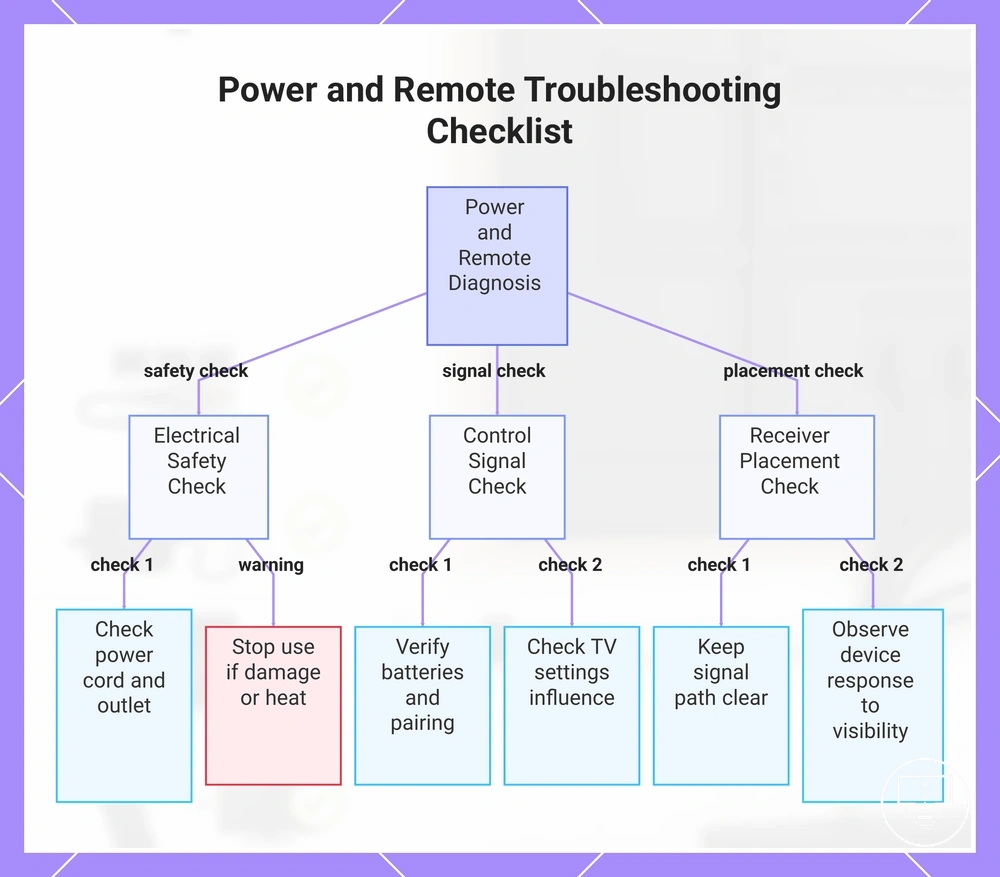
When a power or control symptom occurs, the cause may involve the power path, remote communication path, receiver placement, or a TV setting, so troubleshooting should separate these areas before assigning fault to an accessory. A power symptom may relate to a cord, outlet, loose plug, or device behavior, while a remote symptom may involve batteries, pairing state, an IR sensor, an IR extender, line of sight, or device response.
Electrical safety should take priority over convenience during diagnosis. Visible damage, unusual heat, burning smell, or unstable power is a stop-use signal for the affected power accessory. If the symptom is limited to control response, the safer approach is to compare remote operation, receiver visibility, and device response before assuming the accessory is the cause.
Use the grouped checklist below to separate electrical safety, control signal, and receiver placement conditions:
- Power cord and outlet: Confirm that the plug remains fully seated and that the outlet connection stays stable during normal use.
- Loose plugs and overheating signs: Stop using the affected power accessory if visible damage, unusual heat, burning smell, or unstable power is present.
- Remote batteries: Verify battery orientation and battery condition before attributing the symptom to the remote.
- Pairing state: Confirm whether the remote requires pairing after a power change or device transition.
- IR sensor and IR extender: Keep the signal path clear and confirm that the receiver area is not obstructed.
- Line of sight and device response: Observe whether the TV responds differently when receiver visibility changes or when another control method is used.
- Setting-related behavior: Consider whether a TV setting influences device response before attributing the symptom to a control accessory.
For broader diagnosis of remote and power accessory issues, the decision should still separate power-path condition, control-signal path, receiver placement, and TV behavior rather than assuming one component is responsible for every symptom.
This chart shows the three main diagnostic areas for power and remote control issues: electrical safety, control signal, and receiver placement.
Power cord, outlet, loose-fit, and overheating checks
Visible damage, overheating, burning smell, or unstable power should stop normal troubleshooting for the affected power accessory. A power cord, outlet, or loose-fit problem may involve the accessory, the outlet condition, the TV requirement, or another power-path factor, but damaged or overheating items should not be treated as ordinary setup errors.
Use the safety checklist below before making any accessory decision:
- Confirm that the power cord fits securely and does not move loosely during normal use.
- Observe whether the outlet holds the plug firmly and whether the connection appears stable.
- Stop using the affected accessory if plug movement causes flickering power, interruption, heat, or visible damage.
- Stop using the affected accessory if there is a burning smell, unusual warmth, exposed damage, or repeated unstable power.
- Compare the accessory with the TV requirement before assuming the power cord or outlet is the only cause.
- Avoid opening, modifying, bypassing, or repairing cords, plugs, outlets, or power components during setup troubleshooting.
If the symptom disappears after using a stable outlet and a correctly matched power accessory, the setup problem may have been related to fit or connection condition. If damage, overheating, smell, or unstable power is present, stop-use safety should control the decision before any further diagnosis.
Remote batteries, signal output, sensor, and pairing checks
When a remote-control symptom occurs, the failure may exist anywhere in the signal chain between the remote and the TV rather than in the remote alone. Troubleshooting should separate battery condition, signal output, sensor visibility, pairing status, and TV response before treating the remote as the source of the setup problem.
Use the mini-checklist below to isolate the remote signal path:
- Confirm that the remote batteries are installed with the correct orientation and still provide adequate charge.
- Observe whether the remote produces a signal output and whether the symptom remains consistent across repeated inputs.
- Check whether the TV sensor is blocked by objects, placement, or other obstructions that may interrupt signal reception.
- If the remote uses Bluetooth or smart-control functions, verify that pairing remains active and matches the intended TV setting.
- If a universal remote is used, confirm that programming matches the intended device before attributing the symptom to an accessory issue.
- Compare remote response with the physical TV buttons. If the TV responds normally to physical controls, the symptom may be linked to the remote signal path rather than the TV itself.
- Consider the infrared versus Bluetooth distinction only when it changes the troubleshooting path, since pairing requirements may differ from line-of-sight signal conditions.
If the TV responds after correcting battery, sensor, pairing, or programming conditions, the setup problem may have been related to the signal chain rather than a failed remote. If the symptom persists while physical TV controls continue to respond normally, the remote path may warrant closer inspection.
IR extender power, placement, and line-of-sight issues
When an IR extender symptom occurs, the signal may be interrupted between the remote, receiver, emitter, power connection, cable path, and hidden device sensor. Troubleshooting should confirm that the IR extender passes the infrared signal through each part of the chain before the accessory issue is attributed to the extender itself.
Use the steps below to isolate local IR extender conditions:
- Confirm that the IR extender power connection, including any USB power source, remains connected and stable.
- Verify that the receiver remains visible to the remote and is not blocked by furniture, doors, or other objects.
- Position the emitter so it aligns with the hidden device sensor rather than another area of the device.
- Inspect cable seating at each connection point and confirm that movement does not interrupt signal delivery.
- Consider whether distance, routing, or hidden-device placement may reduce signal reliability in the current setup.
- Compare device response after adjusting receiver visibility or emitter alignment before attributing the symptom to an accessory issue.
- Confirm that the remote uses infrared control when troubleshooting the IR extender path, since a different control method may change the decision process.
If receiver visibility, emitter placement, power, or cable seating changes the symptom, the setup problem may be related to signal alignment rather than extender failure. If the control system relies on Bluetooth or RF communication instead of infrared, an IR extender may not address that remote-control condition.
Compatibility Problems That Look Like Accessory Failure
Compatibility problems can mimic accessory failure when a physically intact cable, adapter, remote, or power item does not match the required port, standard, signal type, control method, or power requirement. A damaged accessory usually shows a condition problem such as visible wear, loose fit, unstable contact, or movement-sensitive behavior, while an unsupported configuration may look connected but still fail because the setup requirements do not align.
These compatibility problems should be evaluated by comparing the accessory requirement with the TV, device, port, setting, and signal path before treating the accessory as broken. The table below separates mismatch patterns from damage-like behavior:
| Accessory area | Requirement to compare | How mismatch can mimic failure |
|---|---|---|
| HDMI cable or port | HDMI version, cable rating, device output, and TV port support | The cable may appear connected, but the signal may fail or degrade if the connected path does not support the required format. |
| Soundbar connection | ARC or eARC support, TV audio setting, and source output | No sound or source-specific audio may look like a faulty sound accessory when the audio path requirements do not match. |
| Adapter | Adapter direction, signal type, and connected port | A wrong adapter may fit physically while failing to pass the intended signal. |
| Remote or control accessory | Universal remote support, programming, IR control, Bluetooth control, or RF behavior | No response may look like remote failure when the control method or programming does not match the device. |
| Power accessory | Power cord fit and TV power requirement | A power accessory may appear connected while still being unsuitable for the TV requirement or unstable in the outlet. |
If the symptom appears only with one unsupported configuration, the issue may be compatibility-related rather than a damaged accessory. If the same symptom follows the accessory across compatible ports, devices, and settings, physical condition or accessory failure may become a stronger diagnostic candidate.
Unsupported signal formats, ports, and accessory standards
Compatibility depends on matching the required signal, port capability, standard, adapter behavior, and power requirement. An unsupported standard can create a normal-looking connection with a failed outcome because the accessory appears connected while the operating requirements do not align.
The condition-to-effect pairs below help separate compatibility risk from a physical accessory issue:
- Signal format mismatch: A signal requirement that differs from the supported format may produce no output, intermittent operation, or limited functionality even when the cable remains connected.
- Port capability mismatch: A TV port may accept a physical connection but may not support the required feature, which can create a symptom that resembles accessory failure.
- Adapter direction mismatch: An adapter may fit correctly while failing to pass the intended signal when the direction requirement does not match the setup path.
- Cable rating mismatch: A cable may appear intact but may not support the signal requirement associated with the connected devices and port configuration.
- Power specification mismatch: A power accessory may connect physically while still being unsuitable for the device requirement, which can affect operation stability.
- Control protocol mismatch: A remote-control accessory may appear functional but may not communicate correctly when the control method differs, such as infrared versus another protocol.
If the accessory condition appears normal but the requirement-to-device relationship does not match, the setup problem may be compatibility-related rather than damage-related. A working-looking accessory can still be unsuitable when the signal, port, standard, adapter, or control requirement differs from what the connected equipment expects.
When to Repair, Adjust, or Replace a TV Setup Accessory
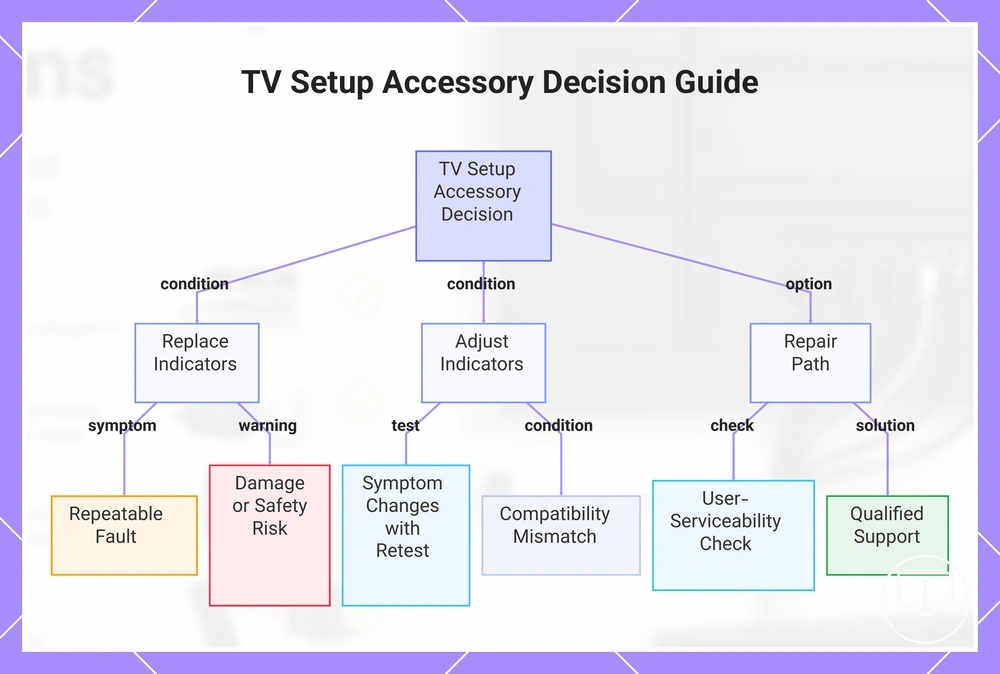
The decision to adjust, repair, or replace a TV setup accessory should follow evidence rather than assumption. A replacement decision is usually stronger when a fault remains repeatable after isolation testing, visible damage is present, a safety risk exists, or a compatibility condition has been confirmed. If the symptom changes after a setting adjustment, port change, reconnection, or controlled retest, the setup problem may not require replacement.
Use the criteria checklist below to guide the decision:
- Repeatability: A repeatable symptom that follows the same accessory across stable conditions may indicate an accessory issue rather than a temporary setup condition.
- Physical damage: Visible wear, broken connectors, exposed materials, or structural damage increases the likelihood that replacement or qualified evaluation may be appropriate.
- Safety risk: Stop using the accessory if overheating, burning smell, unstable power, or other safety-related conditions are present.
- Compatibility failure: If a confirmed mismatch exists between the accessory, device, port, setting, or signal requirement, correction of the mismatch may be more appropriate than replacement.
- Replacement availability: When a correct and compatible replacement is available, replacement may be a practical option if the fault remains unresolved.
- User-serviceability: If the accessory is not intended for user repair or the repair path involves safety risk, qualified support may be more appropriate than attempting a repair.
A low-risk adjustment is often appropriate when the symptom changes with a setting, port, connection path, or controlled retest. If the fault remains repeatable, damage is visible, safety risk is present, or the accessory cannot reasonably be restored through a qualified path, the decision may shift toward replacement or professional support. For broader guidance on maintenance and replacement, evaluate the accessory condition alongside compatibility, safety, and repeatability criteria.
This chart outlines the main indicators for replacing, adjusting, or repairing a TV setup accessory based on evidence from testing and inspection.
Repeatable faults, visible damage, and failed basic checks
Repeated failure is stronger evidence than a one-time symptom because repeatability shows whether the same fault follows the accessory after the setting, device, port, and connection condition have been isolated. Replacement or escalation may be more reasonable when the symptom remains consistent after basic checks, while unclear symptoms should be retested before any replacement decision.
Use the evidence signals below to separate weak symptoms from stronger replacement or escalation criteria:
- Fault repeatability: A fault that follows the same accessory across stable conditions may support escalation more than a single unexplained interruption.
- Visible wear: Worn connectors, loose casing, or degraded surfaces may indicate that the accessory condition needs closer evaluation.
- Bent pins: Bent connector pins may affect fit or signal transfer, but the decision should still consider whether the symptom has been isolated.
- Frayed cords: Stop testing immediately when a cord is frayed, exposed, overheating, or associated with a burning smell.
- Cracked adapters: A cracked adapter may require replacement or qualified evaluation when the damage affects fit, stability, or safe use.
- Failed substitution tests: If a known-working accessory performs normally while the original repeats the same symptom, the original accessory issue becomes more likely.
- Recurring disconnection: Repeated dropouts or disconnections during normal use may support replacement only after port, setting, and device variables have been ruled out.
If visible damage, overheating, burning smell, or exposed power materials appear, testing should end immediately for that accessory. If the symptom is not repeatable and the setup variables have not been isolated, adjustment or retesting is usually a safer decision than replacement.
Replacement accessories that must match the original setup
Replacement depends on the original setup requirements, not only the accessory name. A replacement accessory may be appropriate after the fault or mismatch is confirmed, but the match should be based on the TV, connected device, port, rating, specification, function, and physical fit.
Use the mini-checklist below to compare the replacement requirement with the original setup:
- Port type: Match the replacement connector to the TV port and connected device port used in the original setup.
- Cable rating: Select a cable rating that supports the signal requirement of the connected TV, device, and accessory function.
- Adapter direction: Confirm that the adapter direction matches the intended input-to-output path.
- Power specification: Match the power accessory specification to the TV or device requirement before considering fit alone.
- Remote compatibility: Match the remote to the TV control method, programming requirement, and supported device behavior.
- IR extender type: Match the extender type to the control path, receiver placement, emitter position, and whether the setup actually uses infrared.
- Audio output path: Match the replacement audio accessory to the output path used in the setup, such as ARC, eARC, optical, Bluetooth, or adapter-based audio.
- Physical fit: Confirm that connector shape, seating, clearance, and placement fit the TV setup without forcing the accessory into position.
A replacement should match the TV, connected device, accessory function, and physical requirement rather than relying only on the product name. If one requirement does not match, the replacement may recreate the same setup problem even when the accessory appears suitable.